Learn how to use TXT Charts features
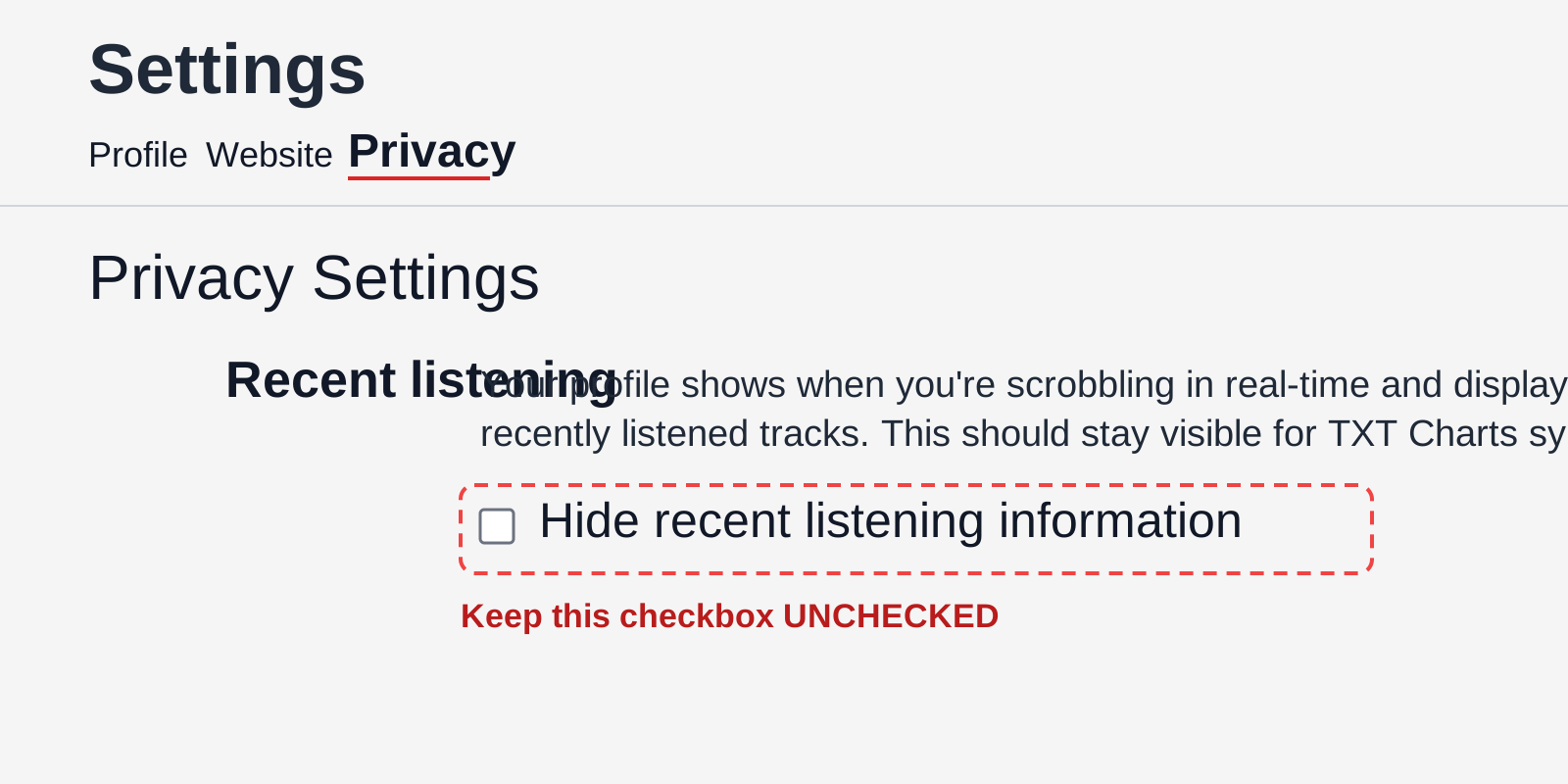
On https://www.last.fm/settings/privacy, make sure "Hide recent listening information" is unchecked.
Go to the Streaming page
Navigate to Streaming from the main menu. This is where you manage all your connected music accounts.
Link your Spotify account
Click "Connect Spotify" and authorize through the OAuth popup. This lets us track your streaming activity for TXT tracks.
Link your Last.fm account
Click "Connect Last.fm" and approve the token authorization. Last.fm provides detailed scrobble history for your streams.
Or link stats.fm instead
Click "Connect stats.fm", enter your profile URL and verify it with the bio code. Only one of Last.fm or stats.fm can be active at a time; see the stats.fm guide below.
How auto-sync works
Your streams sync automatically every hour. You can also trigger a manual sync anytime from the Streaming page.
View your stats
Check your stream counts, achievements, and streaks on the Streaming page. Compete on leaderboards and earn badges.
Note: Spotify dev mode
Spotify integration is currently in development mode, which requires your account to be on our allowlist. Contact a mod if you need access.
Make your stats.fm profile public
In stats.fm go to Settings › Privacy and make sure Profile and Streams are public. We can only read what you share publicly; we never ask for your stats.fm password.
Open the Streaming page and choose Connect stats.fm
Enter your stats.fm profile URL (for example https://stats.fm/yourname) or your username. We show the profile we found so you can confirm it is yours.
Prove the profile is yours
Copy the short code shown in the dialog, paste it into your stats.fm bio and save. Come back and press the button in the dialog. You can delete the code from your bio afterwards.
One service at a time
If Last.fm is already connected, the button reads Switch to stats.fm. Switching replaces Last.fm so nothing is counted twice; your streams, badges and streaks stay.
How plays are counted
stats.fm counts a play once you listen for 30 seconds. It fetches your 50 most recent plays about once an hour, so very long sessions can lose plays unless you import your Spotify history on stats.fm. We sync hourly; use Sync Now to refresh sooner.
Start on desktop and disable ad-blockers first
Use a desktop/laptop browser for setup. Before reconnecting, disable ad-blockers/privacy extensions for TXT Charts (uBlock, AdBlock, Brave Shields, Privacy Badger, script blockers) and refresh the page.
Confirm Last.fm is linked to Spotify
In Last.fm settings, verify Spotify is connected at https://www.last.fm/about/trackmymusic#spotify. If Spotify is not linked there, TXT Charts cannot read your latest listening data.
Check Last.fm privacy settings
Go to Last.fm Settings > Privacy and make sure "Hide recent listening information" is unchecked. If this is hidden, stream sync will fail.
Quick reconnect (most common fix)
On TXT Charts, disconnect Last.fm, refresh the page, then connect Last.fm again and complete authorization.
Full reset if reconnect fails
Disconnect Last.fm in TXT Charts, then in Last.fm go to Settings > Applications and remove/revoke TXT Charts. Return to TXT Charts, refresh, and connect again from a clean state.
If the connect screen keeps loading forever
This is usually blocked popup/cached auth state. Retry with ad-blockers off, then use an Incognito/Private window or a different browser (Chrome/Safari recommended).
Quick checklist before contacting a mod
Desktop browser, ad-blockers off, Spotify linked on Last.fm, Last.fm listening history visible, disconnect-refresh-reconnect completed, and full reset completed.
What are Star Projects?
Star Projects are community streaming goals where MOAs work together to reach target stream counts for specific TXT tracks.
Join an existing project
Browse active projects on the Star Projects page and click "Join" on any project you want to contribute to.
Create a new project
Moderators and above can create new projects by selecting a track, setting a stream target, and adding milestones.
Milestones and progress
Projects have milestones that celebrate key achievements along the way. Track collective progress in real time on the project page.
Leaderboard contributions
Your streams for the project track are counted toward the goal. The leaderboard shows top contributors for each project.
Daily check-in
Visit the Check-in page daily to log your mood and optionally respond to a prompt. Build streaks and earn streak badges.
Streaks and badges
Consecutive daily check-ins build your streak. Reach milestones like 7, 30, and 100 days to earn special badges.
Available games
Play Trivia, Guess the Member, Memory Match, Era Guesser, and Guess the Song. Each game tests your TXT knowledge in different ways.
Daily challenges
Each game has a daily challenge with a unique seed. Complete them for bonus achievements and bragging rights.
Achievements and leaderboards
Earn game-specific achievements and climb the leaderboards. Your best scores are tracked across all game modes.
Creating posts
Share text, images, and GIFs in the forum. You can attach up to 4 images per post or use the GIF picker to search for the perfect reaction.
Reactions
React to posts with heart, fire, cry, laugh, star, or moa reactions. Show your support and engage with the community.
Comments and replies
Add comments to posts to join the discussion. You can include images and GIFs in comments too.
Follow other MOAs
Follow other users to stay updated on their activity. Build your MOA network and connect with fans who share your interests.
Message mods
Use the messaging feature to reach out to moderators directly if you need help or have questions about the platform.
Reporting posts
If you see content that violates community guidelines, use the Report option on any post. Mods will review reports promptly.
